Working with Event Detail Templates
By default, events viewed in the Object Details Viewer display fields in a simple line-by-line format. This presentation can be modified using Event Detail Templates, which are custom layouts that let you control how data fields appear in the Object Details Viewer.
Templates can hide or emphasize information, display fields in multiple columns, and change the order of an event’s details. A single template can be applied to multiple events, and a single event can use multiple templates.
Event Detail Templates are globally visible to all Workstation users when viewing events.
Example
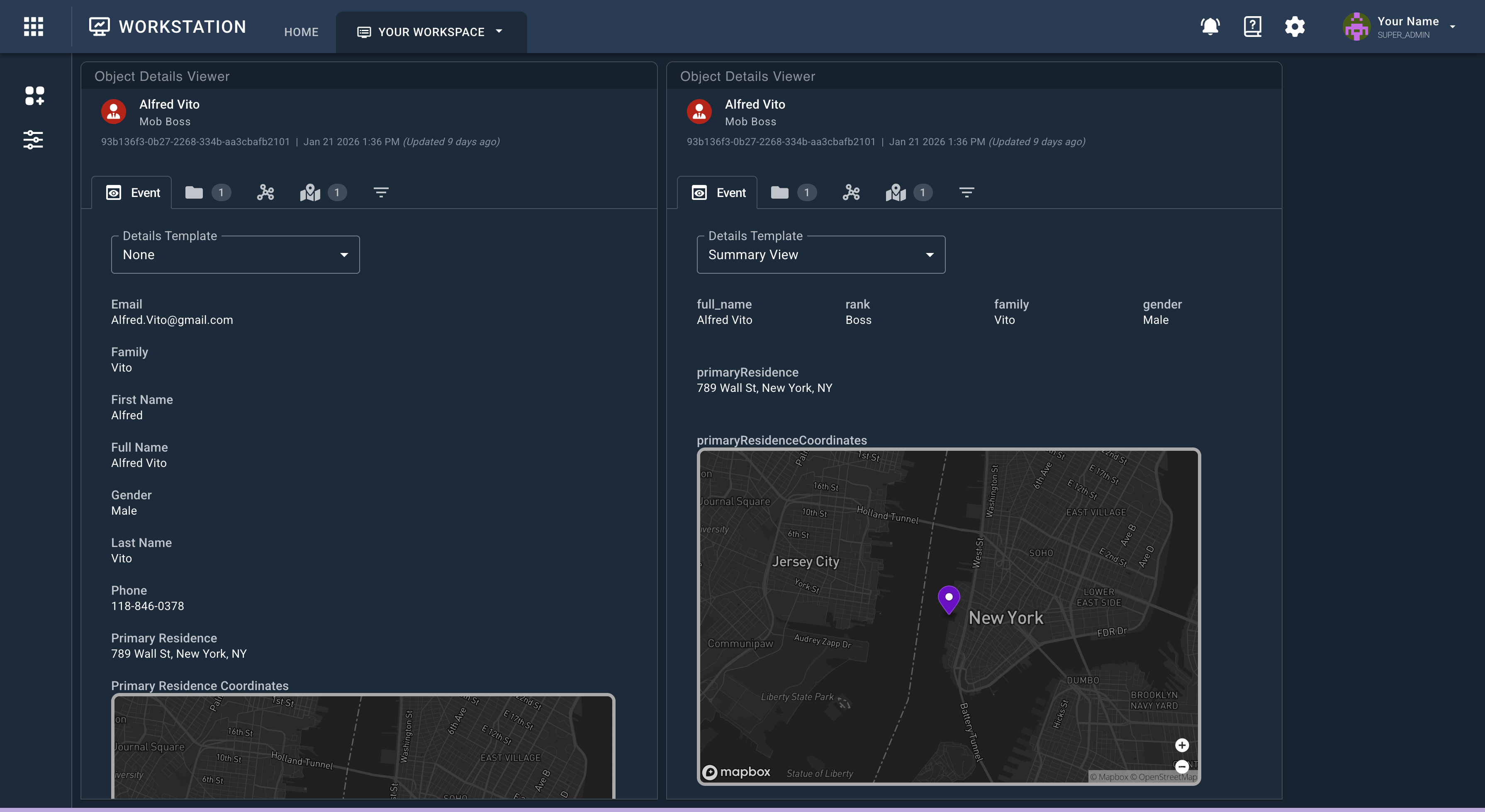
The following example shows the same event viewed two different ways. On the left, no template is selected. On the right, a custom Summary View template is applied, displaying the data in a more digestible and efficient layout.
Managing Event Detail Templates
Workstation allows creating, modifying, duplicating, and deleting event detail templates as necessary.
Creating Event Detail Templates
Event detail templates can be creates as needed.
To create an event detail template:
- From the top of the workstation Home page, click the Settings cog.
- In the left side drawer, click the Event Templates icon.
- Click the blue + Event Template icon.
- In the popup that opens:
- Name the template.
- Pick the event type you wish to create a template for.
- Click Submit. The workspace to arrange event details appears.
- Arrange the event details as needed.
- Click Submit to finalize the event detail template's creation.
Arranging Event Details
Event details vary based on the data ingested into Workstation. In the left panel, all fields available to the event type can be dragged into the workspace for a customizable arrangement. Fields can be emphasized or obfuscated based on their importance to a given use case, and these workspaces can be used in event analysis.
Consider the following workflow suggestions whe using this workspace:
- At the top of the workspace, use Template Name to personalize the template in progress. The name used is selectable in Object Details Viewer.
- To the right of Template Name, use Preview to view a sample of data in a modal popup.
- From the left panel, click and drag an event detail block into the workspace. A highlighted outline of the object helps determine placement.
- Each block dragged into a workspace uses the data field's default name.
- Click the data field, and type a name to rename it.
- At the bottom right corner of any event detail block, click the resize icon to resize the block.
- Each block can be as wide or tall as needed to accommodate any sized widget.
- Use Preview frequently to examine templates in progress.
- A minimum of three by three blocks is recommended for geo data and maps.
- Create as many blocks as needed.
Add one block for each field the analyst needs to see. Order is preserved, so arrange the most important details accordingly.
- Drag blocks around the grid to reorder them.
- At the upper right of any block, click the three dots icon to open a context menu and delete the the block.
- Click Save when ready to preserve the template created, or Cancel to discard any changes.
Editing or Deleting Existing Templates
On Workstation's Settings page, users with read permissions for Templates Event Details can view Event Templates. Users with write permissions for Templates Event Details can edit and delete templates, even if they were created by other users.
To edit an existing template:
- From any Workstation page, click the Settings cog.
- In the left side drawer, click Event Templates.
- At the right of any event template, click the More menu (⋮)
- In the menu:
- Click Edit to open a workspace to arrange the event template.
- Click Duplicate to create a duplicate version of the event template.
- Click Delete to remove an event template from Workstation.
Duplicating Event Templates
Event templates can be duplicated and used as needed.
To duplicate event templates:
- From any Workstation page, click the Settings cog.
- In the left side drawer, click Event Templates.
- At the right of any event details template, click the More menu (⋮).
- In the menu:
- Edit opens a workspace to arrange the event details template.
- Delete an event details template to remove it from Workstation.
A duplicate template uses the same event type and fields from the original event type. These details cannot be changed.
Once the duplicate event template is made, you can edit it to change the template's name. The default uses the original file name and adds an increment of one with each duplicate.