Events Explorer
The Events Explorer is the primary widget to use to find and view events after events have been ingested into Workstation.
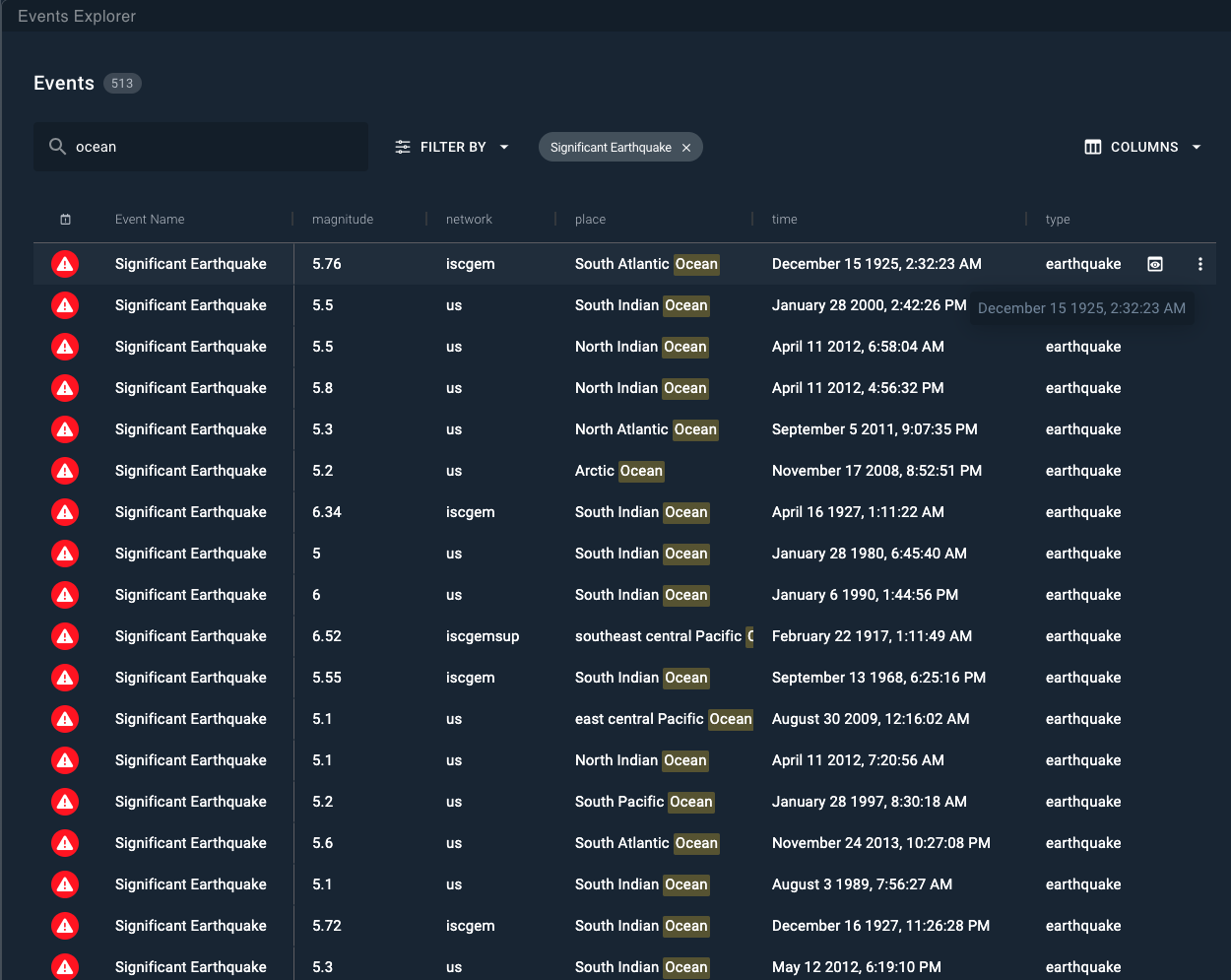
The Events Explorer widget presents a table of recently ingested events with the following columns visible by default:
- Icon: The icon, including color, used for the event set from the Data Ingestion Settings page.
- Event Name: The title of the event.
- Risk Score: An associated risk score as processed by Authoring/HCEP, if applicable.
- Occurred: The timestamp of when the event occurred, if applicable.
Results are paginated. To reload events, at the bottom right side of the Events Explorer widget, click the Refresh button.
Viewing Events
Specific events can be viewed by sending the event to an Object Details Viewer widget.
Alternatively, events can be quickly previewed by click the caret icon to the left of each event row.
More Row Actions
In the More menu (⋮) that appears on the end of each event row, users can select from the following options:
- Open in New Browser Tab: Opens the selected event (or collection) in a new browser tab.
- Copy Link: Copies a permalink URL of the event to your clipboard.
- Open in New Viewer Widget: Opens a new Object Details Viewer widget that contains the select event's details.
- Send to Viewer Widget: Select from any already opened Object Details Viewer widget.
- Send to Another Workspace: Send to any Object Details Viewer inside of a workspace that the user has access to.
- Manual Actions: Access the manual actions menu to perform a manual action.
- Add to Collection: Adds the selected event to any selected Collection, or a newly created Collection.
Finding Events
The Events Explorer includes a search and filter controls to help you find events. For more information, see:
Table Display Settings
The following section describes controls available to manipulate the display of the table.
Table Columns
At the top right of the widget, click the Columns icon to control which fields are displayed in the Events table. Select or clear the checkbox next to each field to show or hide it.
| Column | Description |
|---|---|
| Core ID | The system-generated unique identifier for the event. |
| Created | The date and time the event was created in Workstation. |
| Event Name | The name of the event. |
| Icon / Color | The icon and color associated with the event type. |
| Occurred | The date and time the event occurred, if available. |
| Risk Score | The risk score assigned to the event, if applicable. |
| Updated | The most recent date and time the event was updated. |
| Event Data Fields | Data fields defined on the currently filtered event types. Each field can be enabled as an additional column. |
Pinning Columns
Pinning a column keeps it in place while scrolling through other system field columns.
To pin columns:
- In the Events Explorer widget, locate the column to pin.
- At the top of the column, hover to reveal the pin icon.
- Click the pin icon to pin the column. Click the icon again to unpin the column.
Hiding Columns
Columns can be hidden to focus on other priority data fields, or simply to arrange and personalize a workspace.
To hide columns:
- In the Events Explorer widget, locate the column to hide.
- At the top of the column, hover to reveal the More menu icon (⋮), then click it to open the more menu.
- Select Hide Column to hide the selected column.
- To unhide a column, select Columns dropdown and select the hidden column.
Sorting Columns
Column values can be sorted in either ascending or descending order, affecting the display of columns.
To sort columns:
- In the Events Explorer widget, locate the column to sort.
- Click the column to sort by ascending order.
- Click the column a second time to sort by descending order.
- Click the column a third time to return to default sorting.
Alternatively, use the More menu:
- At the top of the column, hover to reveal the More menu icon (⋮). Click it to open the More menu.
- Select your preferred sort method.
Sorting works on alphanumeric strings, floats, integers, and timestamps.