Comments
After you have found a collection, you can open it by sending it to an Object Details Viewer (ODV). The Details tab is where you manage comments on a collection.
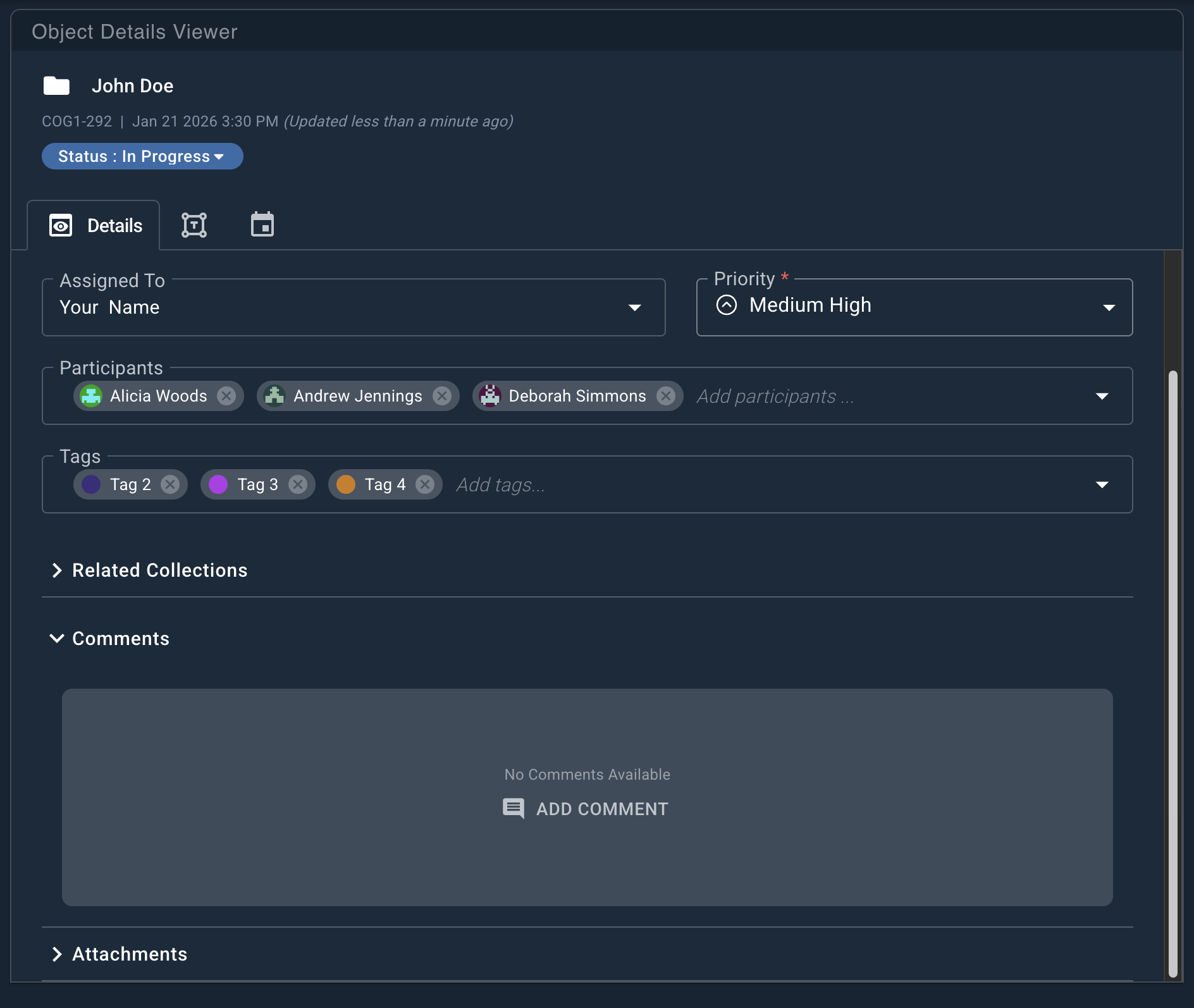
Using Collection Comments
Collection comments provide analysts a space to leave comments on collections, reply to comments in a collapsible thread, tag one another for further analysis, attach files, and manage conversations surrounding case files.
Writing Comments
To write a comment in a collection open within Object Details Viewer:
- At the bottom of Object Details Viewer, click the Comments dropdown. (Add Comment is visible if no comments exist.)
- To the right of the comments subhead, click Add Comment.
- Type comments into the comment field.
- Comments allow markdown with a 3,000 character limit.
- It is possible to add attachments to comments.
- Replying to comments creates a collapsible thread.
- If inline replies already exist, click the Replies link to open the accordion box containing all replies.
- Click the Add button to save the comment as written, or Cancel to discard the comment.
You can tag users in a comment by typing @ and selecting a user account (for example, @John Doe).
Tagging a user generates a system notification alerting them that they were mentioned.
Editing Comments
Comments can be edited to add additional text, remove or upload additional files, or tag other users.
Users can only edit comments and attachments that they have made. Super Admins can edit or delete any user's comment.
To edit a comment:
- At the bottom of Object Details Viewer, locate the Comments text field.
- At the bottom right of an existing comment or reply, click Edit.
- Make any desired changes. (For information about attaching files to comments, see Comment Attachments.)
- Click Save to post the edited comment or reply, or Cancel to discard the changes.
Deleting Comments
If a comment is no longer needed, or was created by mistake, it can be deleted.
To delete a comment:
- At the bottom of Object Details Viewer, click the Comments dropdown.
- At the bottom right of the comment or reply, locate Delete.
- Confirm you wish to delete the comment or reply, or Cancel deletion.
Users can only delete comments that they have made.
In-line replies to comments are not lost when deleting the top level comment.
Sorting Comments
By default, comments are reverse chronological, newest to oldest.
To set your preferred comment sort order:
- To the right of Comments, click the More menu (⋮). The Sort By menu opens.
- Select Oldest first to list items chronologically.
- Select Newest first to list items in reverse chronology.
Attachments on Comments
Users can upload file attachments to comments or the collection. See the File Attachments page for more information.