Editing Collection Details
After you have found a collection, open it by sending it to an Object Details Viewer (ODV). The Details tab is where you can update the collection’s metadata.
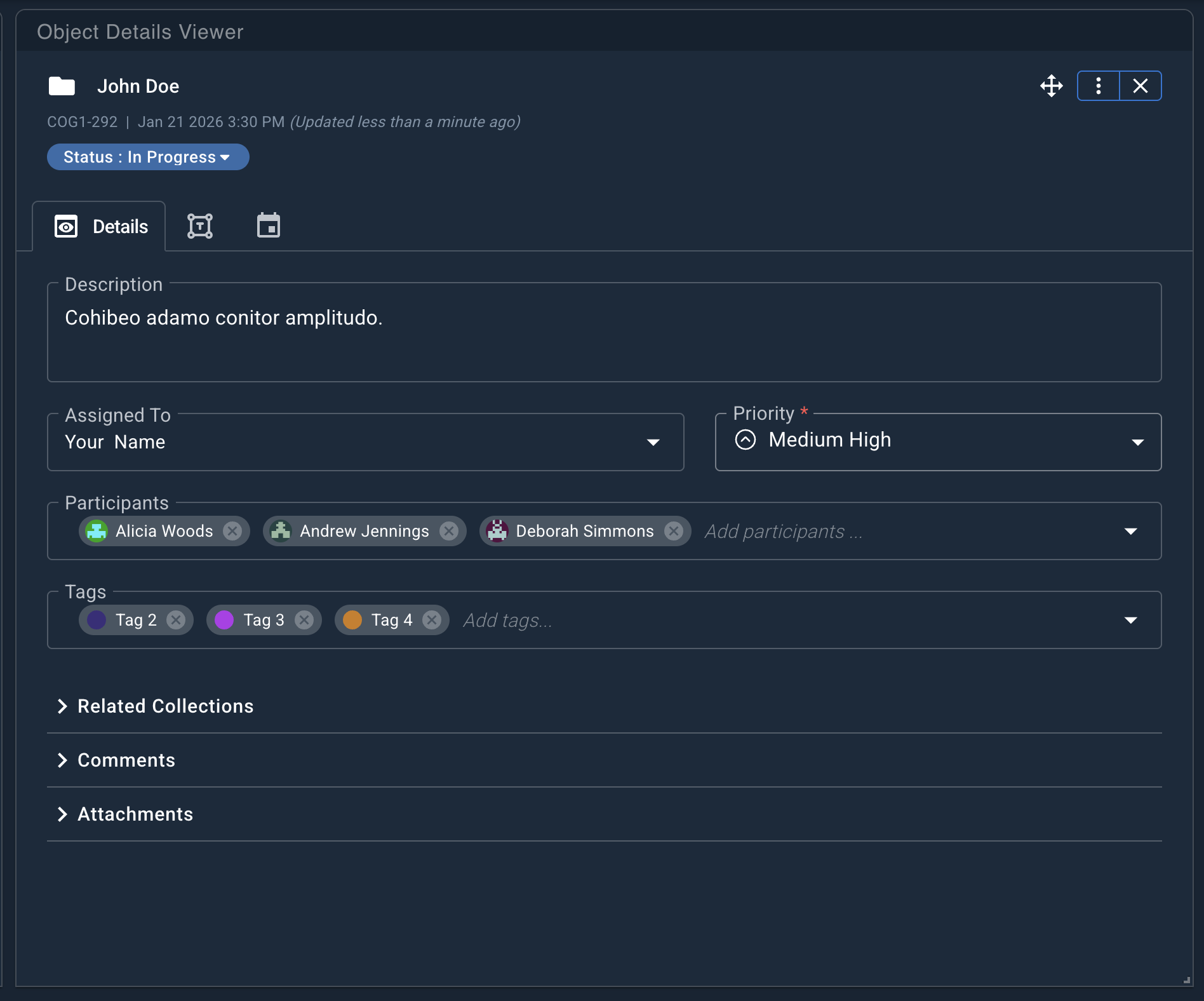
Name
To edit the Name field:
- Hover over the collection name until the pencil icon appears.
- Click the pencil to enter edit mode.
- Update the name.
- Click the checkmark or press Enter to save.
Description
To edit the Description field:
- Click the description field.
- Enter the desired text.
Changes are automatically saved when you leave the field.
Status
The current collection status appears in the header beneath the collection name.
To edit the collection status:
- Click the status to open the list of available statuses.
- Select a new status from the list to apply it.
Assigned To and Participants
Collections support two user roles:
- Assigned To (Primary): The primary owner responsible for maintaining the collection.
- Participants: Additional users who contribute to the collection, such as analysts, case managers, or subject matter experts.
Click either field to view and select users from the available list.
Priority
Click the Priority field to select a priority level for the collection.
Tags
Click the Tags field to view available tags. You can assign multiple tags to a collection.
- Click the X on an individual tag to remove it.
- Click the X at the end of the tags menu to remove all tags at once.