File Attachments
Users can upload files to collections and to comments within a collection.
Navigating to Attachments
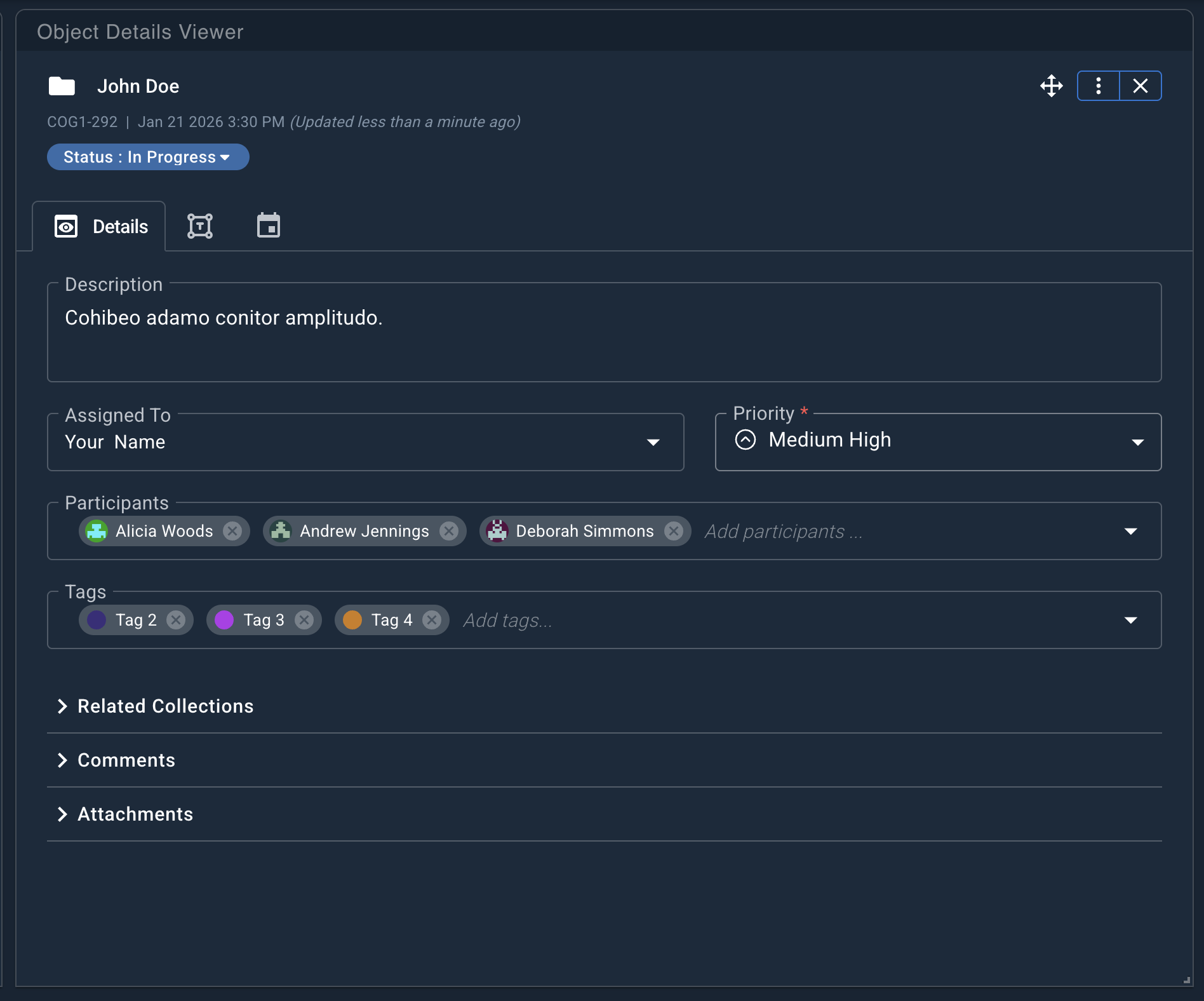
After you have found a collection, you can open it by sending it to an Object Details Viewer (ODV). Attachments and comments are accessed from the Details tab.
Collection Attachments
To view collection attachments, expand the Attachments accordion.
Attachments are listed with the file name, file size, and the user who uploaded them.
Comment Attachments
To view attachments to comments, expand the Comments accordion. If a comment includes attachments, an Attachments button appears at the bottom of the comment with a count of attached files. Click the Attachments button to view the Attachments table.
Previewing Attachments
Some file types can be previewed directly in the browser. Click the file name to open a preview. If a file cannot be previewed, you will be prompted to download it.
Downloading Attachments
Download an individual file by clicking the Download icon next to the file.
Download all attachments as a single .zip file by clicking the Download icon in the upper-right corner of the Attachments table.
Uploading Attachments
Attaching Files to Collections
Relevant files can be attached to collections for storage and retrieval.
To attach a file to a collection:
- Expand the Attachments accordion.
- Click Attach files.
- In the dialog box, select one or more files to upload.
- A toast notification displays upload progress. When the progress bar completes, the files are attached to the collection.
Attaching Files to Comments
You can add attachments when creating a new comment or to an existing comment that you authored.
Files are limited to 1 GB per file. You can upload multiple files at the same time.
Attaching Files to New Comments
To attach a file to a new comment:
- Click Attach Files while creating the comment.
- Select the files to upload.
- Files are uploaded after you submit the comment.
Attaching Files to Existing Comments
To attach a file to an existing comment:
- Click Edit on your comment.
- Click Attach Files.
- Select the files to upload. The files upload immediately.
Allowed File Types
The following file types are allowed by default in Cogynt. Any file type not listed is blocked.
These defaults can be adjusted. Contact your Cogynt system administrator to request changes.
- Image:
bmp,jpeg,gif,png,svg+xml,webp - Audio:
mpeg,wav - Video:
avi,mov,mp4,webm - Application:
application/json,application/pdf,application/ppt,application/pptx,application/xls,application/xlsx,application/xml - Text:
text/csv,text/doc,text/docx,text/plain,text/rtf,text/xml
Deleting Attachments
After navigating to the attachments you want to remove, click Delete next to the file. In the confirmation dialog, click Delete to proceed or Cancel to keep the file.
Users can only delete files they uploaded. Super Admins can delete any files.