Event Details
Events Tab
The Events tab shows the data available on the event. Data fields may display differently depending on their field type.
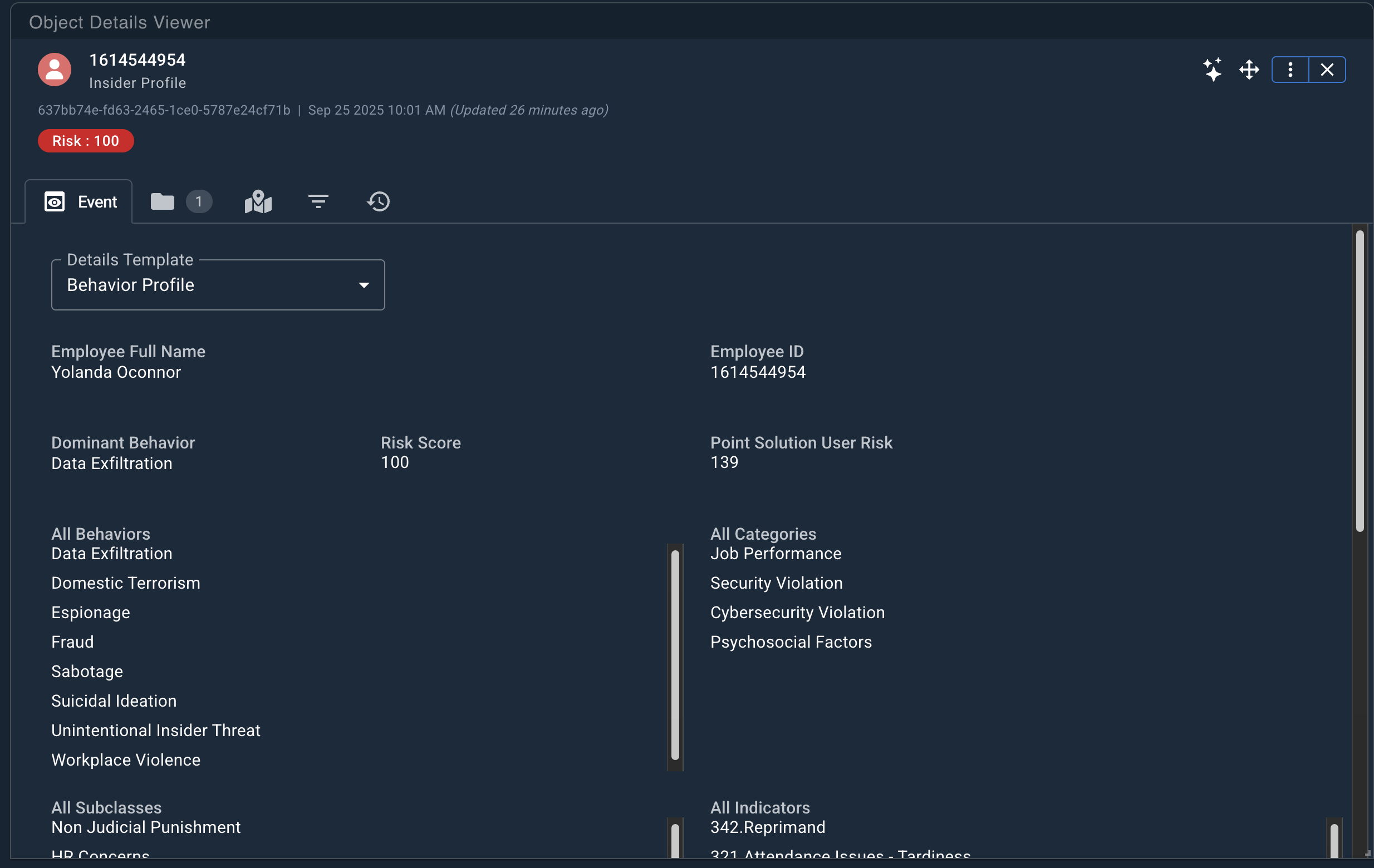
Event Detail Data Fields
The widget displays the information available on the event based on the data type of each data field.
| Type of Data | Description |
|---|---|
| Risk Level | Adds the most recent risk_score value color-coded according to severity. |
| Text / Boolean / Float / Integer / IP / Unique ID | Displays strings of the selected type. |
| Arrays | Any array is rendered as text strings where each entry is separated with line breaks. |
| Timestamps | Date time fields rendered in the viewer's local timezone. |
| Geo Data | Geo-data, whether coordinates or polygons, is displayed in a small preview map. |
| URL | URLs are displayed as clickable links that navigate to the URL using your computer's web browser. |
| JSON | JSON objects and array of JSON objects Displayed as an expand/collapsible JSON object with the ability to copy the entire object or specific levels |
The widget enforces a maximum height for long fields (such as strings or arrays). At the right of the field, use the scroll box to review any obscured data.
If [object Object] appears for a field, the event data has been supplied to Workstation in an unsupported format. Contact the modeler of the data to correct the formatting.
Using Event Templates
Event templates alter the display and layout of an event's fields to emphasize the most relevant data. Event templates are selectable by template name, and used when an event is loaded into Object Details Viewer.
To select an event template:
- From a workspace containing Object Details Viewer, drag an event from the Events Explorer into Object Details Viewer. The widget becomes Event Details Viewer.
- From the Event Details Viewer Widget, locate the Details Template dropdown menu.
- Select the desired template from the dropdown menu. The event changes to match the selected template's layout. Alternatively, select None to return the event details viewer to its default state.
The Object Details Viewer remembers which template was selected for a specific event type event when other events are dragged into it. This memory persists until the workspace is reloaded, or if the user clears the Object Details Viewer.
Lexicon Matches
If lexicons were created in Authoring, fields of text containing matches are highlighted in yellow.