Collections
The Collections tab shows how an event is associated with collections and allows you to add the event to one or more collections.
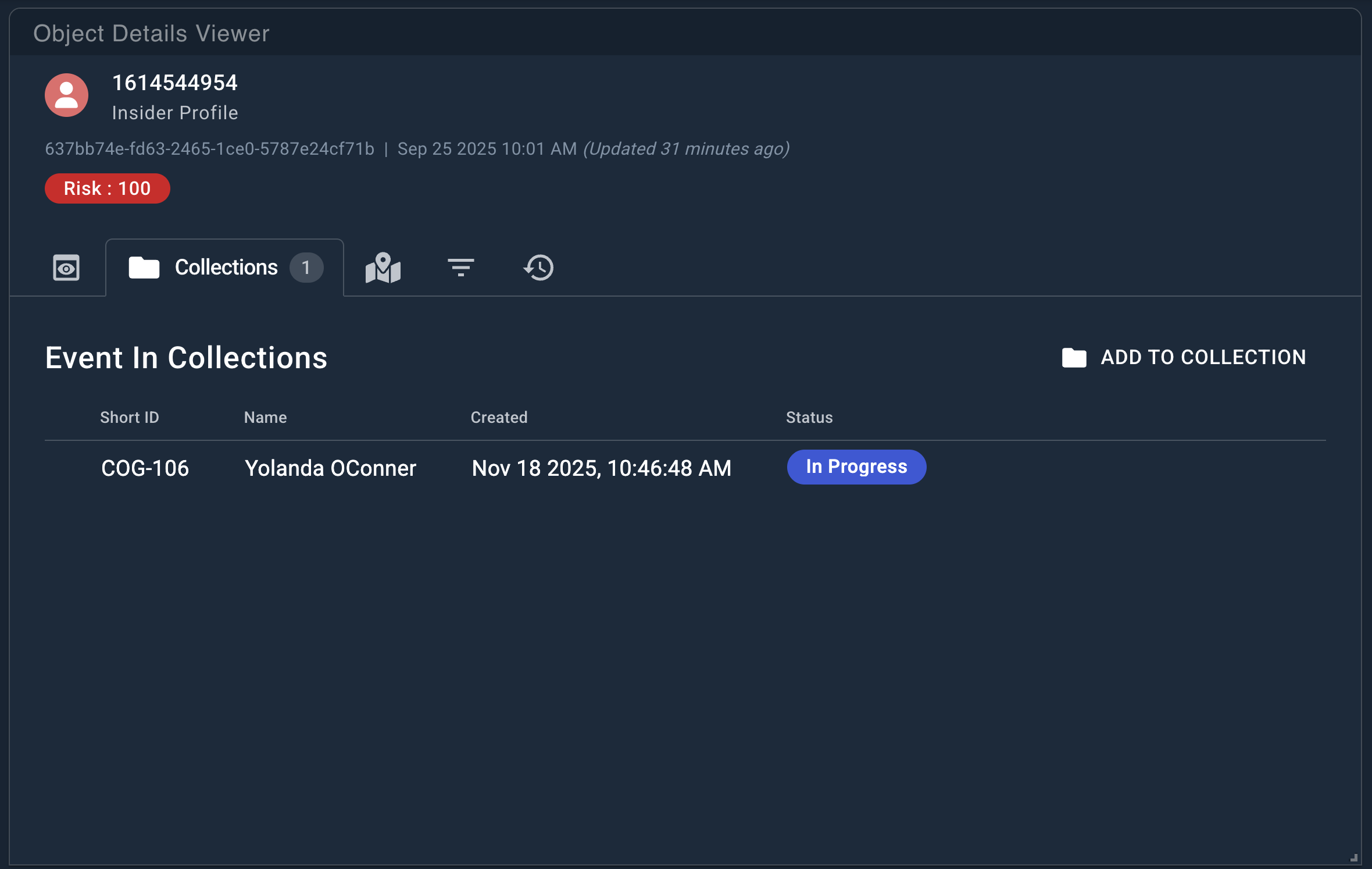
From this tab, you can:
- View any collections the event is already linked to.
- See a count of how many collections the event is linked to.
- Add the event to an existing collection or create a new one.
- Remove the event from an existing collection.
- View the collection details.
Adding Events to Collections
To add an event to a collection:
- Click Add to Collection. The Add to Collection modal opens.
- Select an existing collection:
- Use search or the Filter By button to narrow the list if needed.
- Click Add to link the event to the selected collection.
- To create a new collection from this view:
- Click the + Collection button.
- Complete the Create Collection form.
- Once created, the event is automatically added to the new collection.
Removing Events from Collections
If an event is linked to one or more collections, those collections appear in the Collections tab.
To remove an event from a collection:
- Locate the collection you want to remove the event from.
- Click the More menu (⋮) on the collection row.
- Select Remove from Collection.